
Workflow
Distinguish selectable PDF text from a scan
Tell whether a PDF has selectable text, extract what Kitly can read, and stop when the page is only a picture.
Goal
Extract the text from a one-page PDF whose second line is two phrases placed side by side, and confirm that an image-only PDF does not return those words.
This page is static HTML. PDF to Text needs JavaScript because PDF.js reads the file in the browser. You can still read both results and the extracted text with JavaScript off. The tool does not upload the PDF.
Inputs
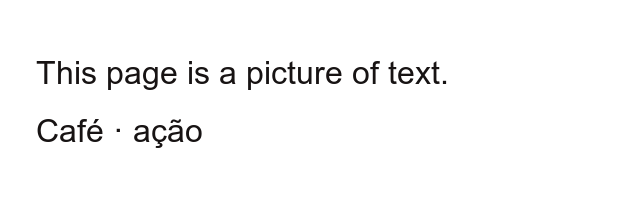
Both PDFs are original to this guide. product-note.pdf is a PDF 1.4 that uses Helvetica with WinAnsi encoding; the standard font is not embedded. scan-only.pdf places scan-only.png on a page, with no text operators and no embedded font. Arial was used only to rasterize two sentences into the bitmap; the published files do not contain the font.
Decisions
Extract the text PDF first
If text appears, check reading order before reusing the phrases. In this file, the two phrases on the second line were drawn at x=72 and x=300 on the same baseline, y=680, and they come out on one line.
Stop when there is no selectable text
An empty result is not a prompt to try again. PDF to Text does not perform OCR. Type the words visible in the picture somewhere else if you need them.
Do not chain another tool
Kitly does not pass extracted text to another utility. Copy or download the TXT when text exists. On the image-only PDF, copy and download stay disabled.
Verified sequence
Choosing a new PDF clears the previous text. Run one file at a time and read the status before switching.
- Download product-note.pdf and scan-only.pdf above. Open scan-only.png if you want to see the picture's sentences.
- Open PDF to Text and choose product-note.pdf. Click Extract text.
- Pages shows 1. The extracted text is exactly the block below. Download product-note.txt if you want those characters in a file. Copy is available because text was found.
- Choose scan-only.pdf. Switching files clears the previous extraction. Click Extract text again.
- Pages shows 1. The text area stays empty. Status and the error both show: No selectable text was found. This PDF may be scanned or image-based. Copy and download stay disabled.
- Compare that with scan-only.png. The picture contains This page is a picture of text. and Café · ação. Those sentences are not in the extraction. Type them yourself if you need them.
Observed result
Extracted with pdfjs-dist 4.10.38, getTextContent, and the tool's own join: each text item gets a newline when hasEOL is true and a space when it is not. Repeated spaces are collapsed.
Text extracted from product-note.pdf
Kitly product note
Cor: café Ação: publicar| product-note.pdf | 718 bytes, 1 page. Text items at (72, 720), then a line break, then Cor: café at (72, 680) and Ação: publicar at (300, 680). |
|---|---|
| product-note.txt | 46 bytes. The same characters as the block above, with no extra newline after publicar. |
| scan-only.pdf | 9139 bytes, shown as 8.9 KB, 1 page. The page box is 640×200. getTextContent returned no text items. |
| scan-only.png | 640×200, 16838 bytes, shown as 16.4 KB. The English sentences are visible in the picture and absent from the extraction. |
| Tool response for the scan | Pages: 1. Empty text. Status and error: No selectable text was found. This PDF may be scanned or image-based. Copy and download stay disabled. |
Limitations
- Visual column order is not preserved. The two phrases on one baseline become a single line.
- There is no OCR. A page you can read in the picture can still produce empty text.
- The tool implements a 25 MB limit and a 200-page limit, and a separate message for an encrypted PDF. Those cases were not run again for this guide.
- The measurement used the component's join function with the worker disabled in the script. The tool page uses the bundled worker from the same 4.10.38 release.
- The sample PDF mixes an English title with Cor: café and Ação: publicar. That result was not translated; it is the observed string.
Tool in this language
Only one tool is part of this workflow. There is no automatic second step.
- PDF to Text Reads selectable text in the browser and says when a page has no text to extract.